

Getting Started
Access to the Cloud Console is invitation-based. When a StarTree team member invites you, you’ll receive an email with a link to create your account. Click the link, set a password, and you’re in. If you already have an account, use Log in instead of creating a new one.Cluster Overview
This section summarizes the current utilization across all the environments for this account. More specifically, it shows the vCPU utilization for each of the Pinot components (Server/Broker/Controller/…)Environments
After logging in, you land on the Environments page — a grid of all environments your account can access.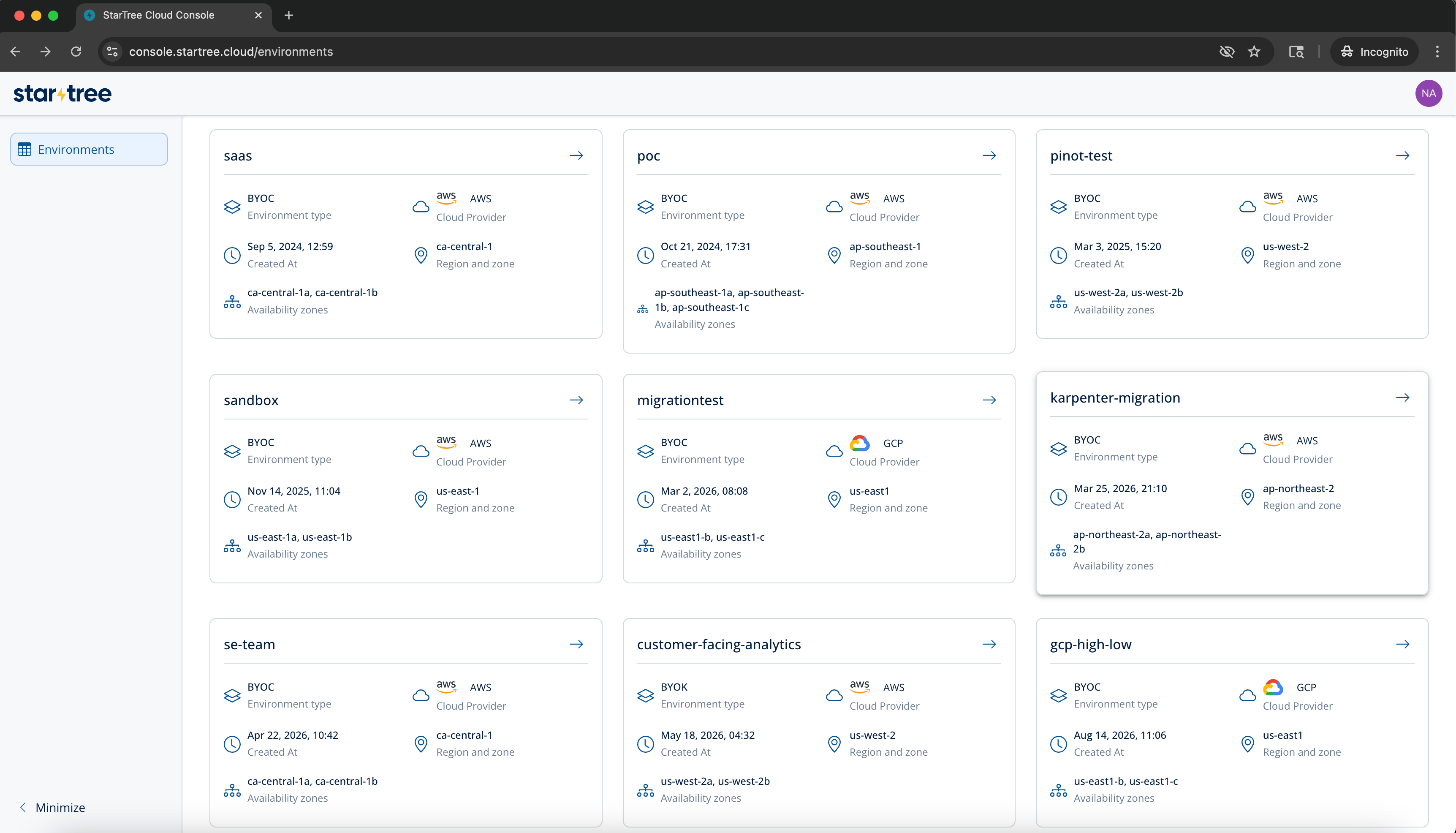
Click any card (or its arrow) to open the environment detail page.
Environment Detail
The environment detail page has three tabs: Pinot, App Links, and IDP.Pinot Tab
The Pinot tab shows all cluster components and their resource allocations.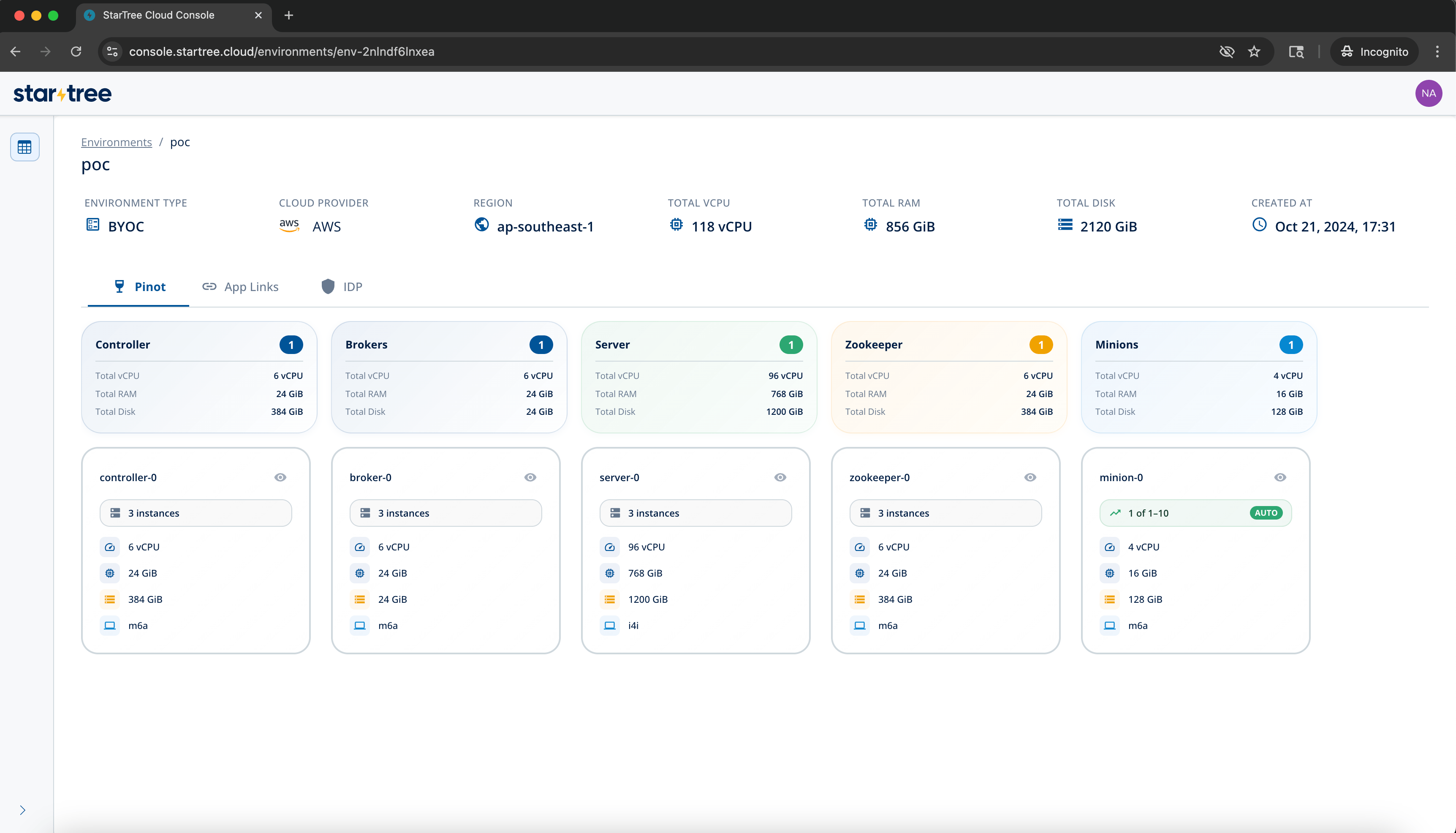
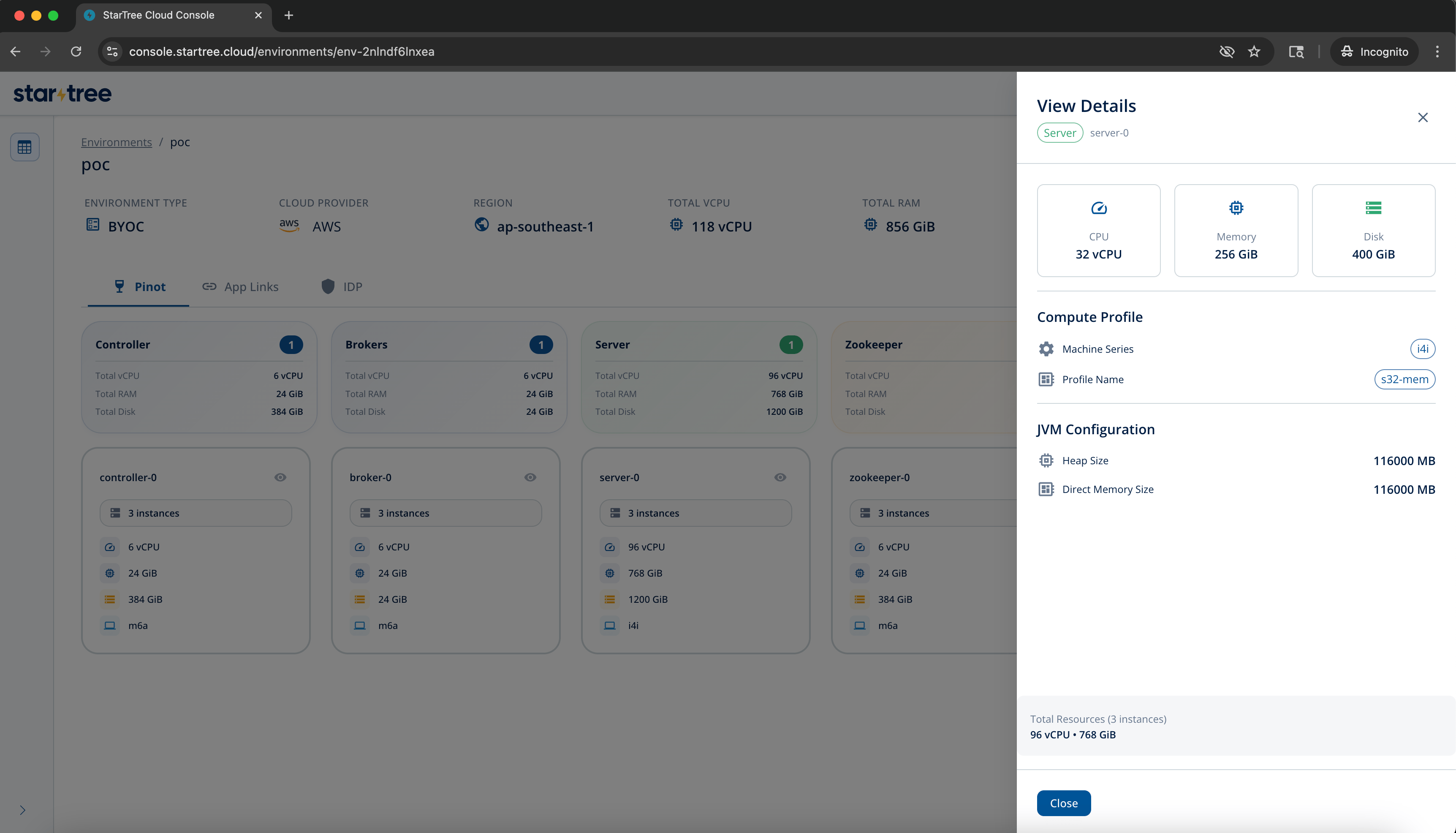
- CPU / Memory / Disk — exact specs for the node type
- Compute Profile — the machine series and profile name (e.g.,
i4i,m6a) - JVM Configuration — heap size and direct memory size
- Autoscaling (Minions only) — whether autoscaling is enabled, and the minimum and maximum instance counts
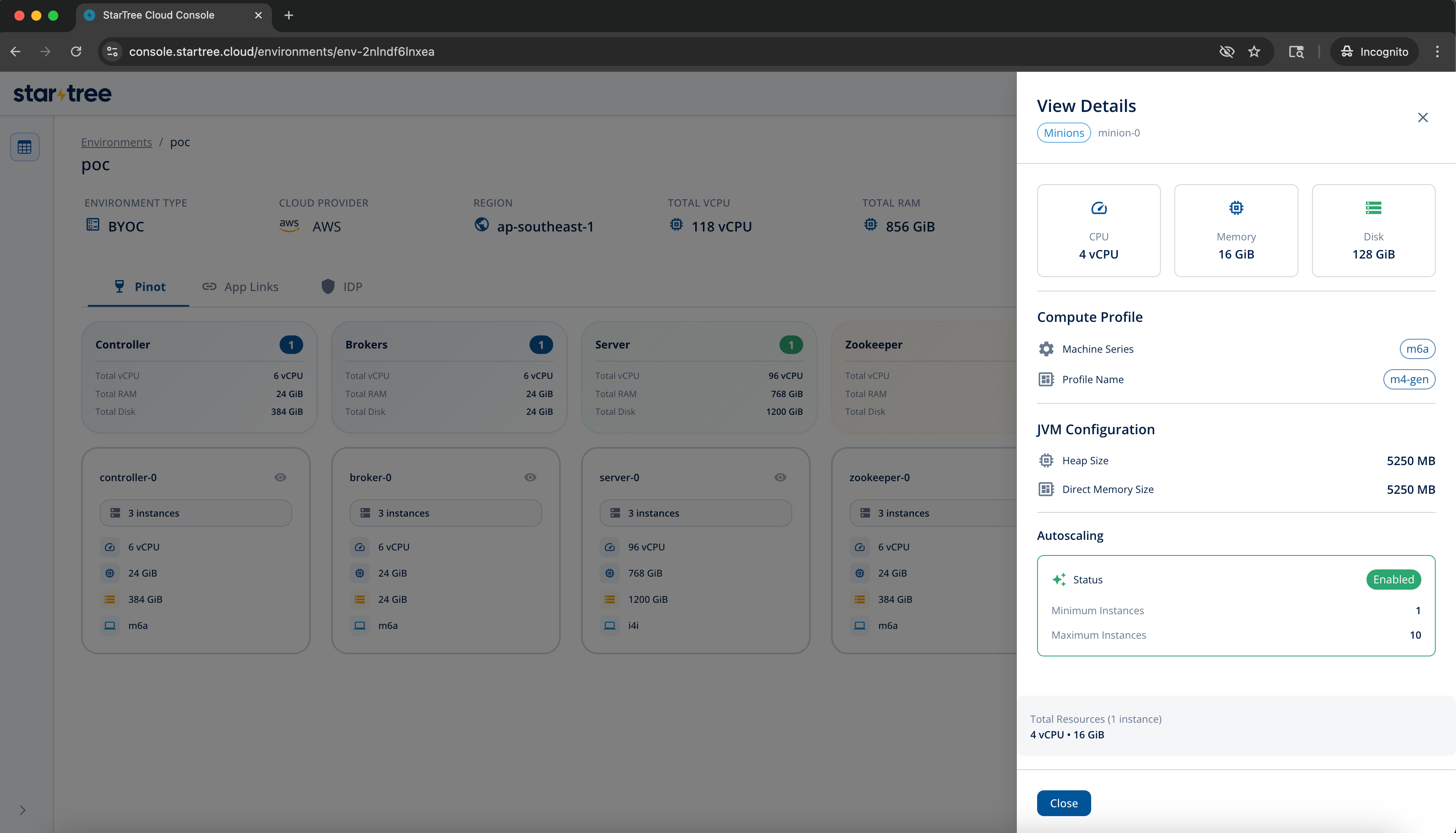
1 of 1–10).
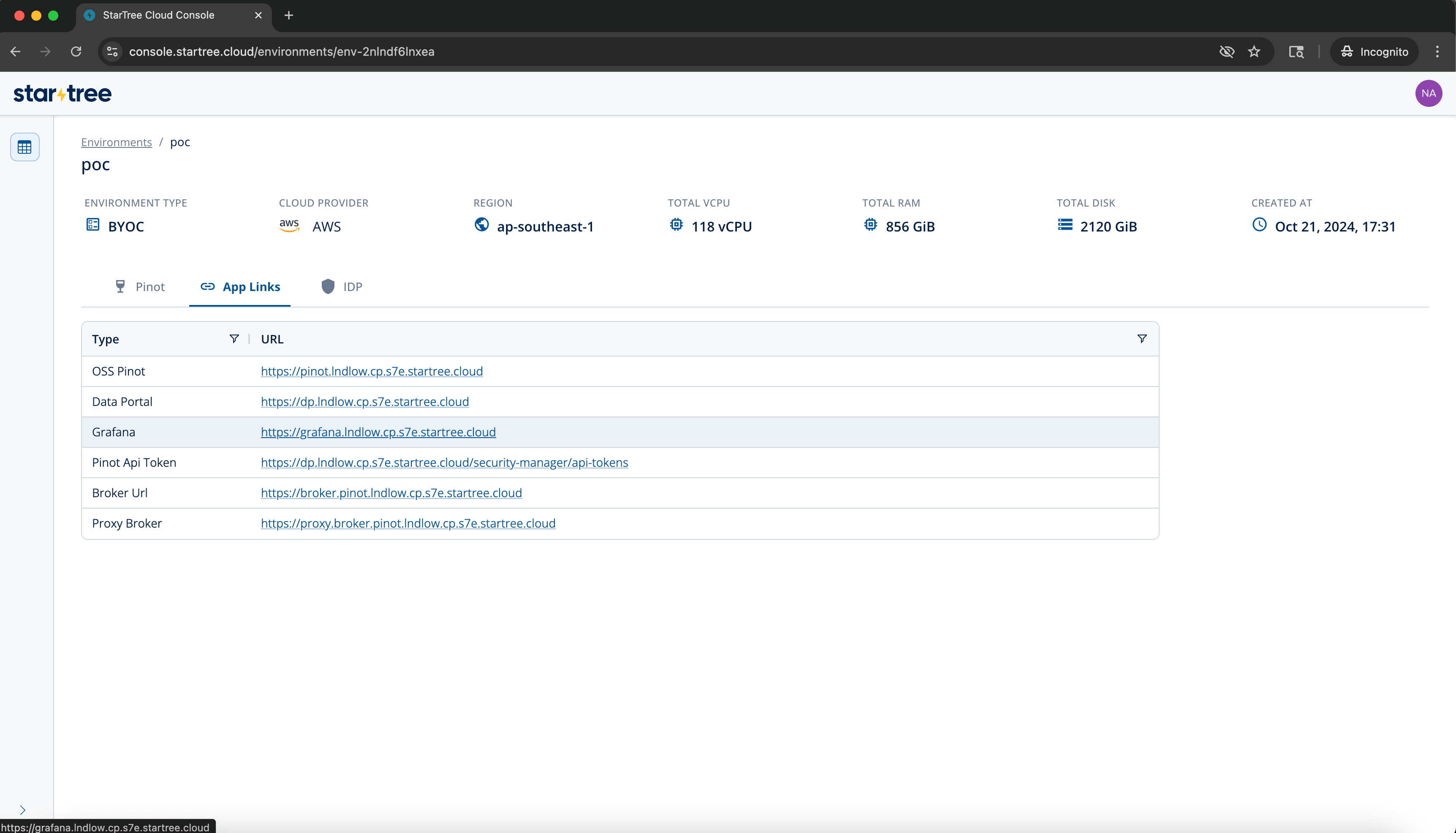
App Links Tab
IDP Tab
The IDP (Identity Provider) tab lets you configure external authentication for your environment. Users will be able to log in to your Pinot cluster using your organization’s existing identity system.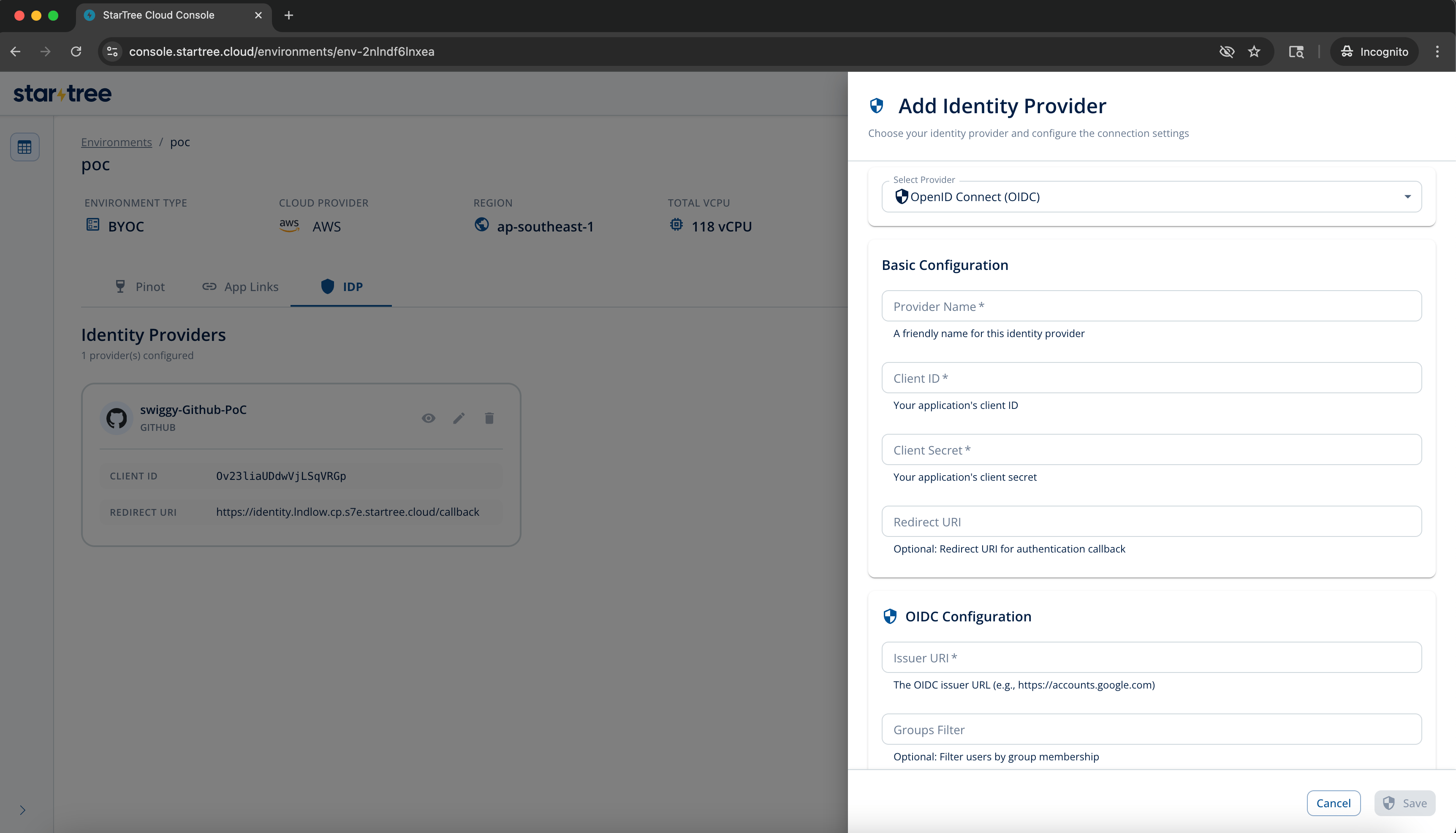
- Provider type — Choose OpenID Connect (OIDC) or GitHub
- Provider Name — A friendly label for this provider
- Client ID and Client Secret — From your identity provider’s app registration
- Redirect URI — Auto-populated; copy this into your identity provider’s allowed callback URLs
- Issuer URI (OIDC only) — The OIDC issuer URL (e.g.,
https://accounts.google.com) - Groups Filter (optional) — Restrict access to users in specific groups