> ## Documentation Index
> Fetch the complete documentation index at: https://docs.startree.ai/llms.txt
> Use this file to discover all available pages before exploring further.
# How to use the ThirdEye API
ThirdEye exposes a CRUD API. This makes it easy to use ThirdEye as a headless service from your apps. The easiest way to discover and try the different endpoints is to use Swagger.
## Using Swagger
Swagger is exposed by the coordinator at `[coordinator_url]/swagger`. If you use StarTree ThirdEye or the Helm charts, Swagger is also exposed by the frontend app at `[your_thirdeye_url]/swagger`.
1. Go to `[your_thirdeye_url]/swagger`
2. If your instance uses authentication, click the "Authorize" button and provide a [bearer token](#obtaining-a-bearer-token).
3. If your instance use HTTPS, switch HTTP to HTTPS.
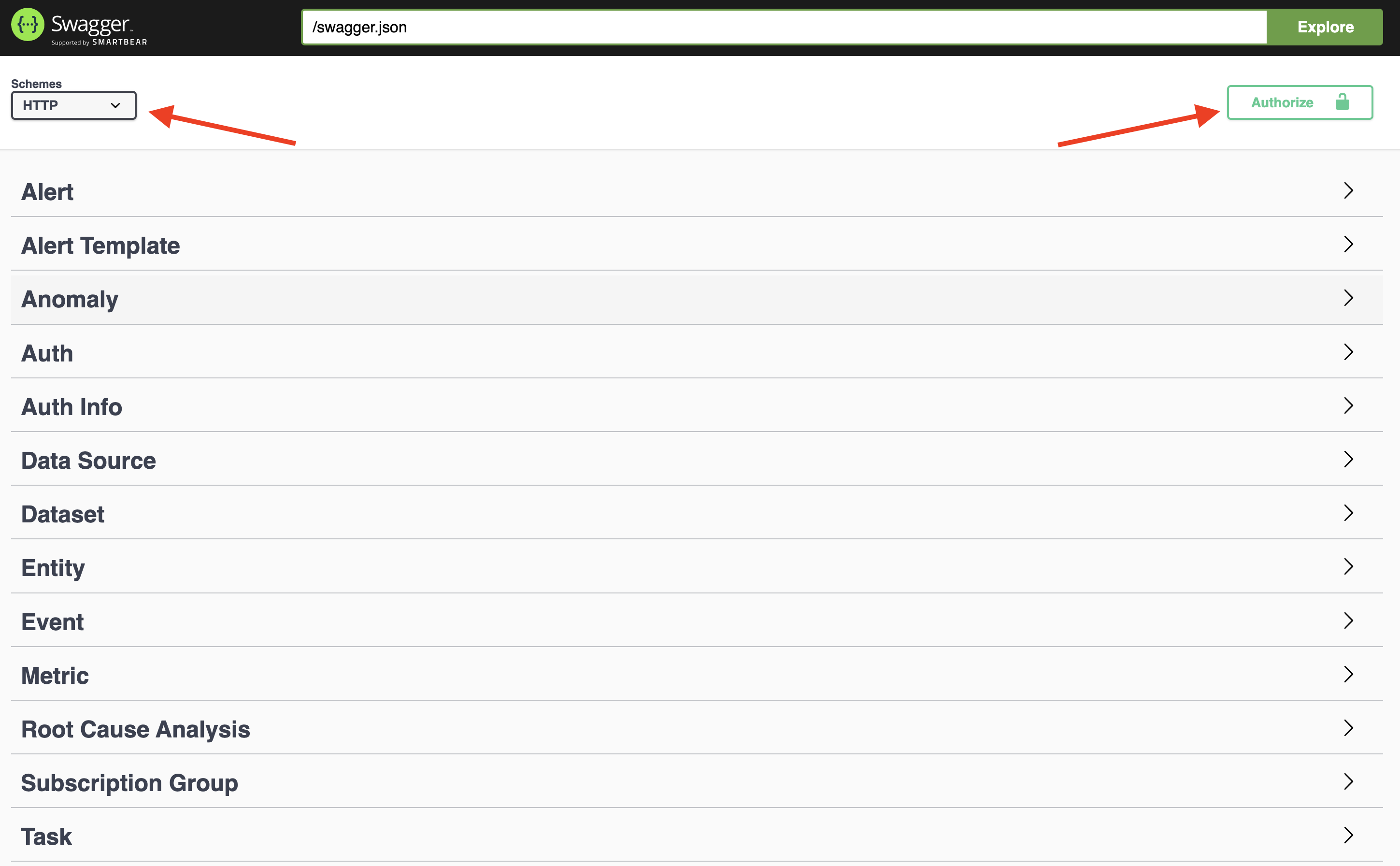 4. Try the endpoints.
### Obtaining a bearer token
If your instance uses authentication, the frontend passes a bearer token when performing requests. In your browser, in the devtools, you can see the bearer token.
4. Try the endpoints.
### Obtaining a bearer token
If your instance uses authentication, the frontend passes a bearer token when performing requests. In your browser, in the devtools, you can see the bearer token.
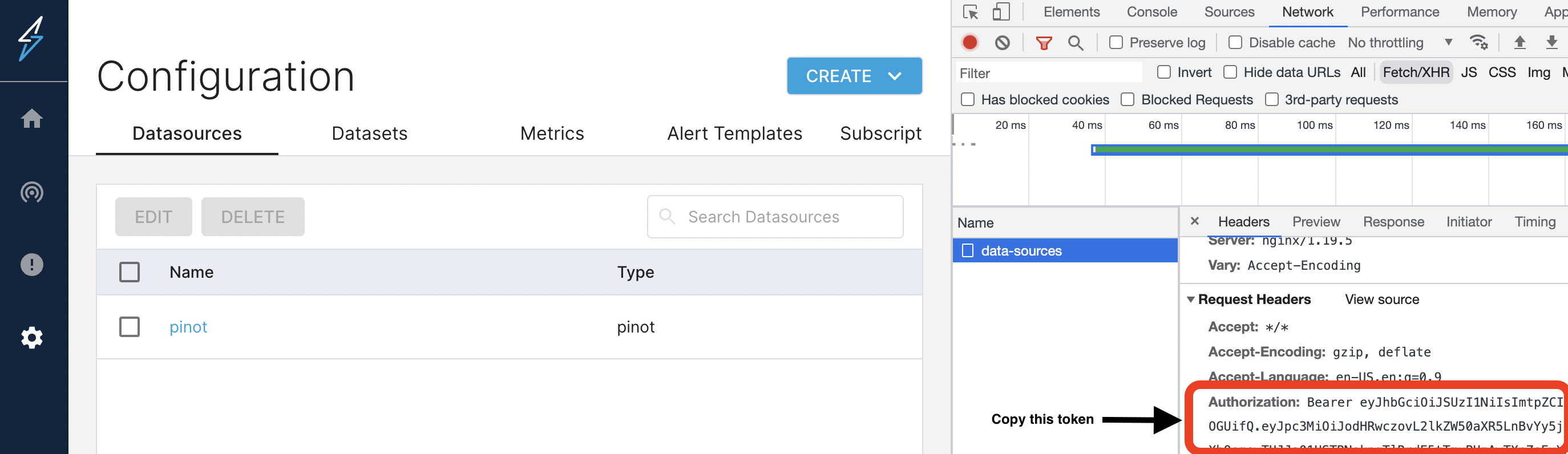 You can copy and paste the token into the Swagger UI.
### Obtaining a long-lasting token (basic auth token)
**StarTree cloud users**: To obtain a basic auth token for StarTree ThirdEye, contact [StarTree Tech Support](https://support.startree.ai/support/home), and then complete **step 3** below (skipping steps 1-2).
#### Step 1 - Update ThirdEye configuration in the Helm chart
```bash theme={null}
auth:
enabled: true
basic:
enabled: true
users:
- username:
password:
```
#### Step 2 - Use the generated basic auth token in requests
To authenticate a request, add the `Authorization` header with the token value as the base64 encoded value of `username:password` prefixed with `Basic`.
**Example:**\
`Authorization: Basic YWRtaW46cGFzcw==` where `YWRtaW46cGFzcw==` is the base64 encoded value of `admin:pass`.
To encode on macOs:
```bash theme={null}
echo -D ':' | base64
```
#### Step 3 - Use the Basic Auth token in Swagger
Copy and paste the token `YWRtaW46cGFzcw==` in the Swagger UI as `Basic YWRtaW46cGFzcw==`.
You can copy and paste the token into the Swagger UI.
### Obtaining a long-lasting token (basic auth token)
**StarTree cloud users**: To obtain a basic auth token for StarTree ThirdEye, contact [StarTree Tech Support](https://support.startree.ai/support/home), and then complete **step 3** below (skipping steps 1-2).
#### Step 1 - Update ThirdEye configuration in the Helm chart
```bash theme={null}
auth:
enabled: true
basic:
enabled: true
users:
- username:
password:
```
#### Step 2 - Use the generated basic auth token in requests
To authenticate a request, add the `Authorization` header with the token value as the base64 encoded value of `username:password` prefixed with `Basic`.
**Example:**\
`Authorization: Basic YWRtaW46cGFzcw==` where `YWRtaW46cGFzcw==` is the base64 encoded value of `admin:pass`.
To encode on macOs:
```bash theme={null}
echo -D ':' | base64
```
#### Step 3 - Use the Basic Auth token in Swagger
Copy and paste the token `YWRtaW46cGFzcw==` in the Swagger UI as `Basic YWRtaW46cGFzcw==`.