> ## Documentation Index
> Fetch the complete documentation index at: https://docs.startree.ai/llms.txt
> Use this file to discover all available pages before exploring further.
# StarTree Cloud Portal
The StarTree Cloud Console is your central hub for managing StarTree environments. From here you can monitor your StarTree cluster, access application endpoints, and configure identity providers.
***
## Getting Started
Access to the Cloud Console is invitation-based. When a StarTree team member invites you, you'll receive an email with a link to create your account. Click the link, set a password, and you're in. If you already have an account, use **Log in** instead of creating a new one.
***
## Cluster Overview
This section summarizes the current utilization across all the environments for this account. More specifically, it shows the vCPU utilization for each of the Pinot components (Server/Broker/Controller/...)
## Environments
After logging in, you land on the **Environments** page — a grid of all environments your account can access.
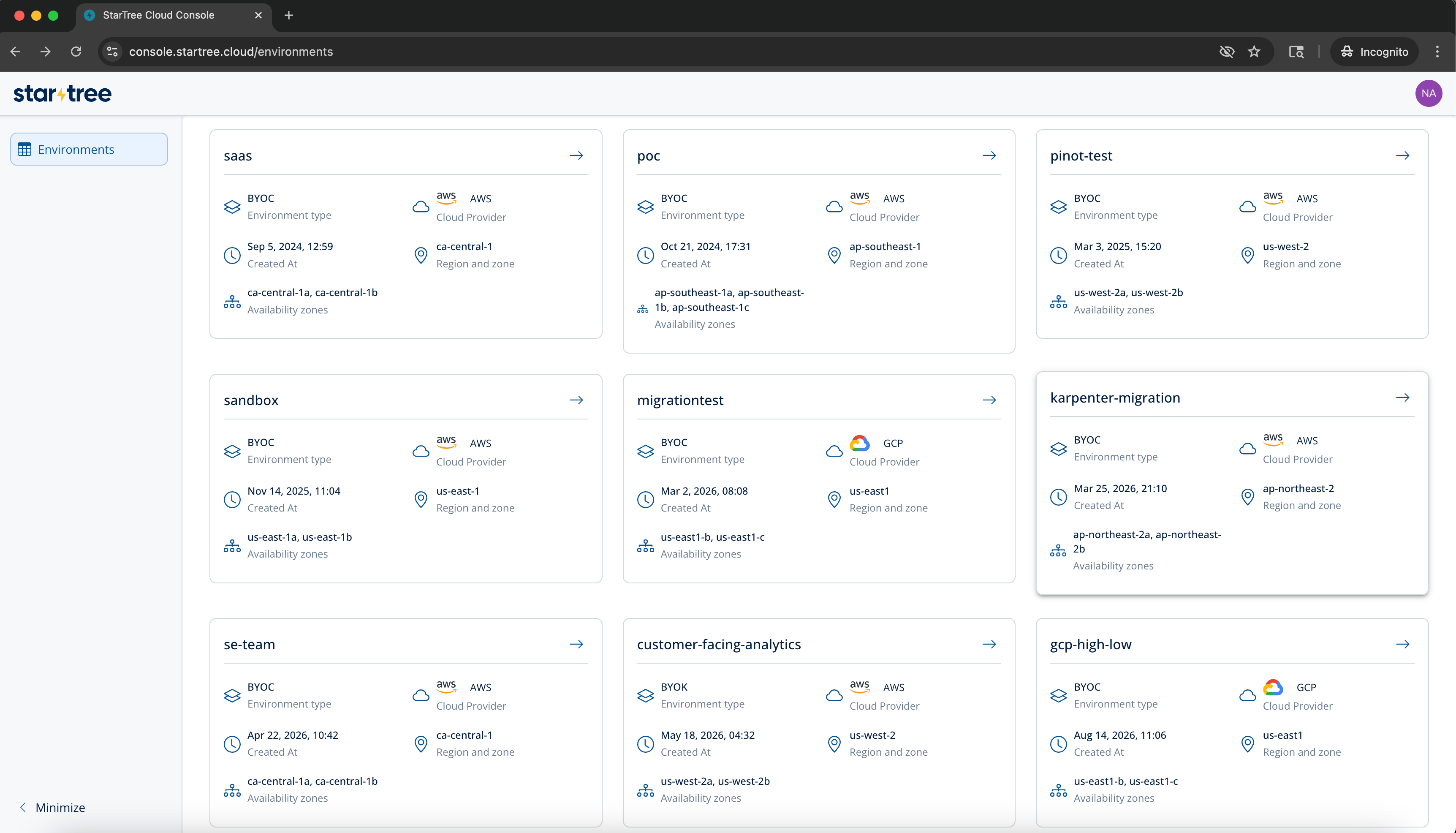 Each card shows:
| Field | Description |
| ------------------ | ------------------------------------------------------------------- |
| Environment type | How the environment is deployed (e.g., BYOC — Bring Your Own Cloud) |
| Cloud provider | AWS, GCP or Azure |
| Region and zone | The primary cloud region |
| Availability zones | Specific zones the cluster spans |
| Created at | When the environment was provisioned |
Click any card (or its arrow) to open the environment detail page.
***
## Environment Detail
The environment detail page has three tabs: **Pinot**, **App Links**, and **IDP**.
### Pinot Tab
The Pinot tab shows all cluster components and their resource allocations.
Each card shows:
| Field | Description |
| ------------------ | ------------------------------------------------------------------- |
| Environment type | How the environment is deployed (e.g., BYOC — Bring Your Own Cloud) |
| Cloud provider | AWS, GCP or Azure |
| Region and zone | The primary cloud region |
| Availability zones | Specific zones the cluster spans |
| Created at | When the environment was provisioned |
Click any card (or its arrow) to open the environment detail page.
***
## Environment Detail
The environment detail page has three tabs: **Pinot**, **App Links**, and **IDP**.
### Pinot Tab
The Pinot tab shows all cluster components and their resource allocations.
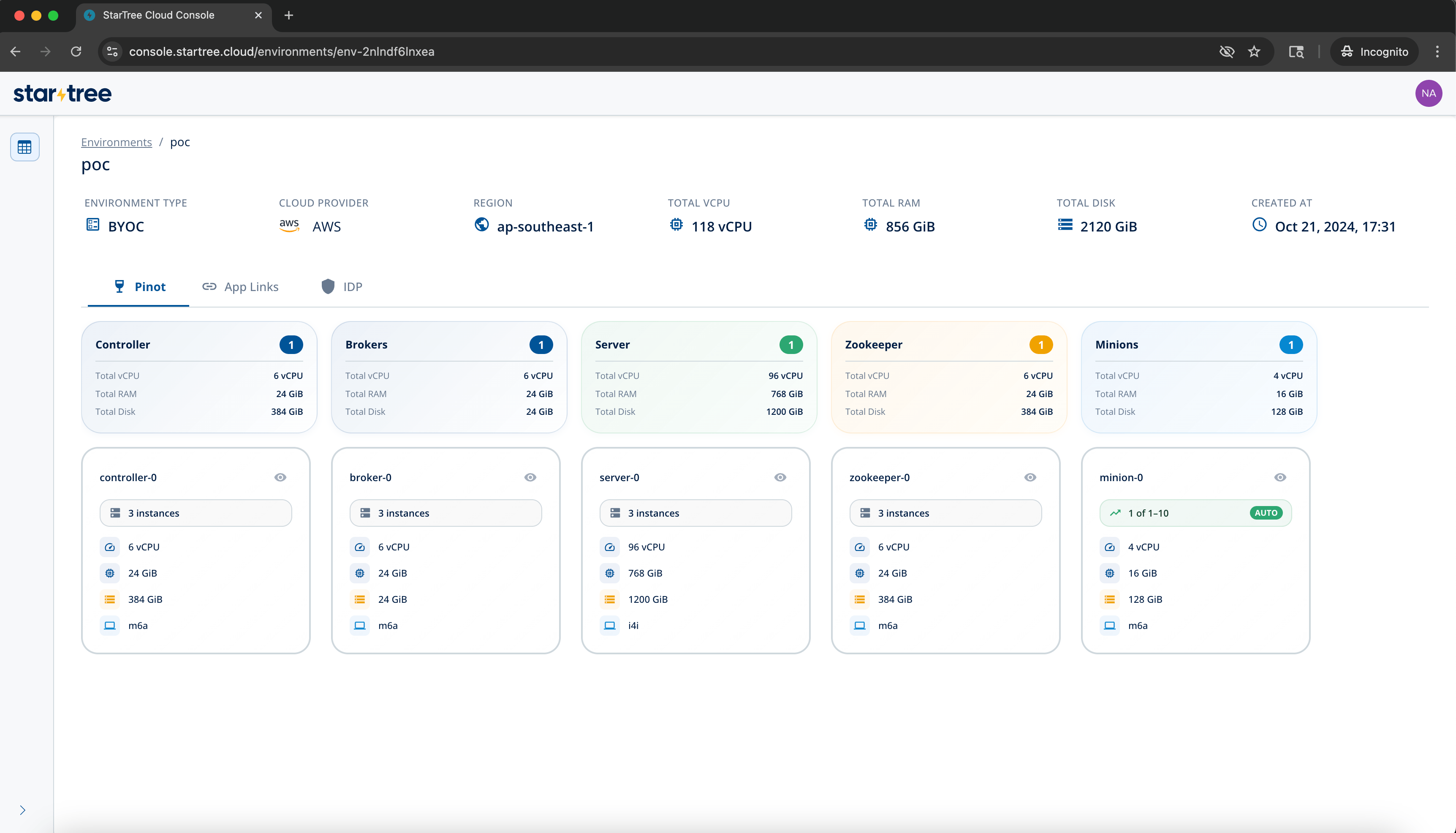 **Component groups** — Controller, Brokers, Server, Zookeeper, and Minions — are each shown as a summary card with total vCPU, RAM, and Disk. Below each summary card, individual node group cards show the instance count and per-node resources.
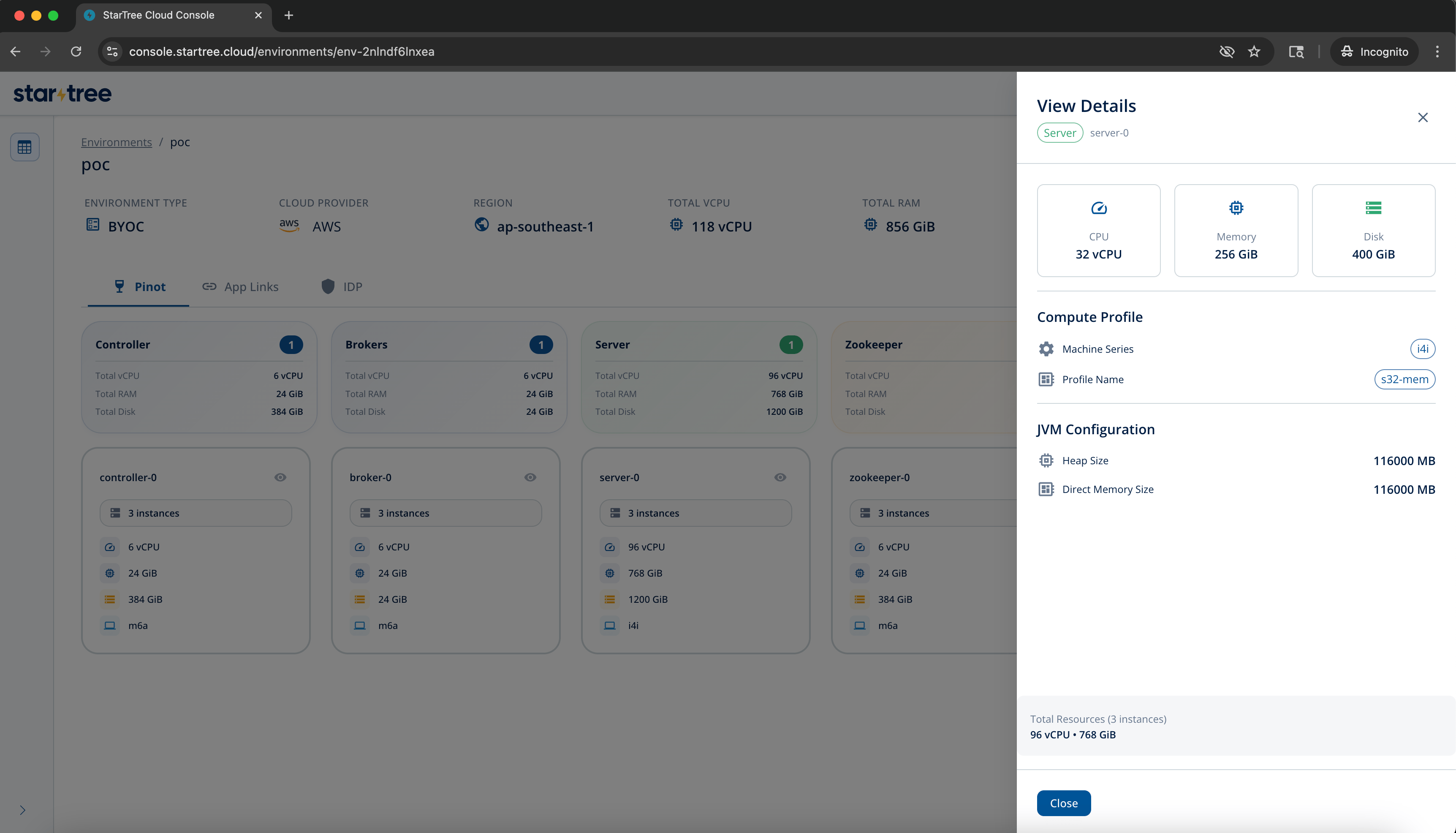
Click the eye icon on any node group card to open a **View Details** drawer with:
* **CPU / Memory / Disk** — exact specs for the node type
* **Compute Profile** — the machine series and profile name (e.g., `i4i`, `m6a`)
* **JVM Configuration** — heap size and direct memory size
* **Autoscaling** (Minions only) — whether autoscaling is enabled, and the minimum and maximum instance counts
**Component groups** — Controller, Brokers, Server, Zookeeper, and Minions — are each shown as a summary card with total vCPU, RAM, and Disk. Below each summary card, individual node group cards show the instance count and per-node resources.
Click the eye icon on any node group card to open a **View Details** drawer with:
* **CPU / Memory / Disk** — exact specs for the node type
* **Compute Profile** — the machine series and profile name (e.g., `i4i`, `m6a`)
* **JVM Configuration** — heap size and direct memory size
* **Autoscaling** (Minions only) — whether autoscaling is enabled, and the minimum and maximum instance counts
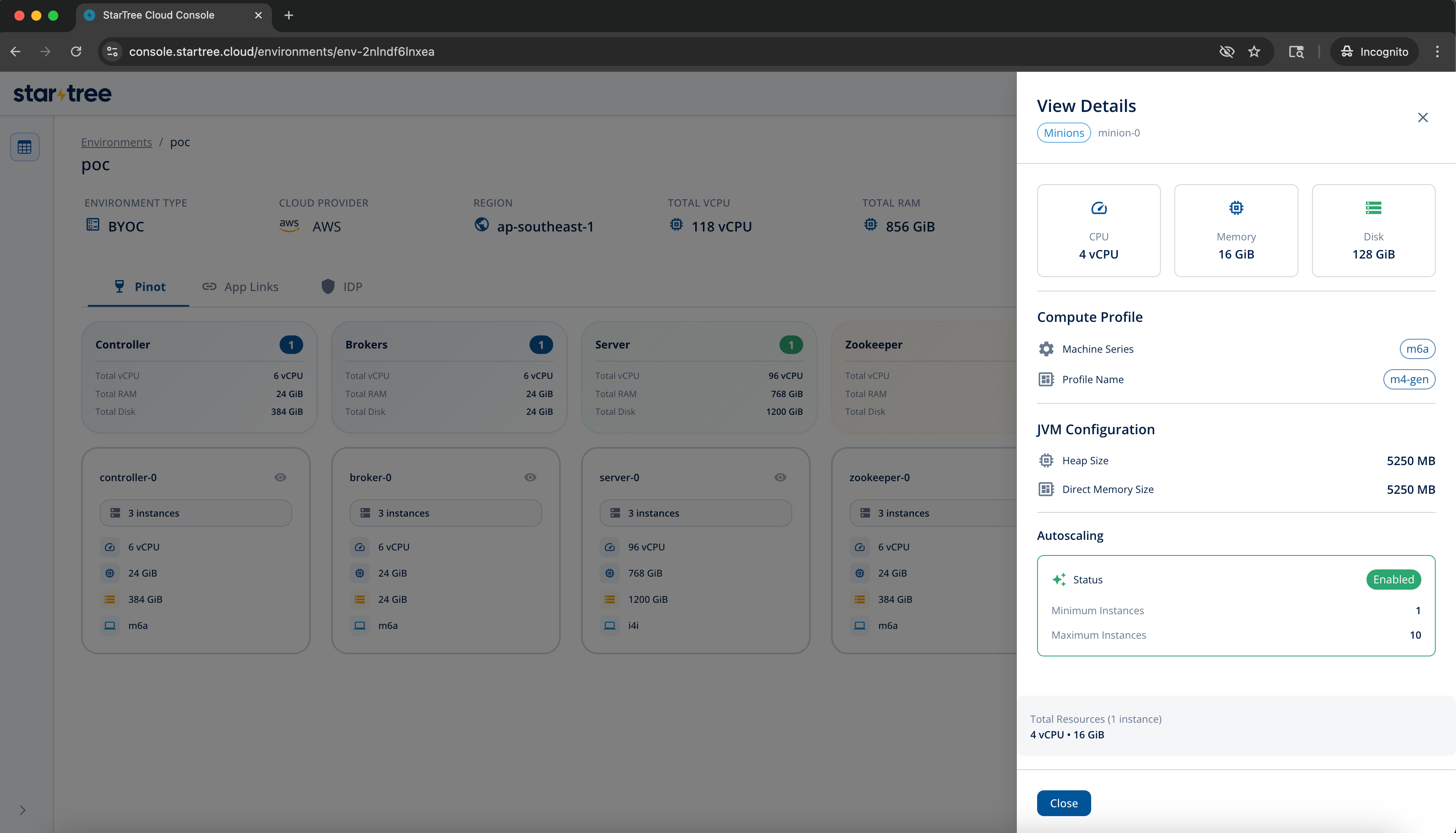 Minion groups with autoscaling enabled show an **AUTO** badge and a live instance range (e.g., `1 of 1–10`).
### App Links Tab
Minion groups with autoscaling enabled show an **AUTO** badge and a live instance range (e.g., `1 of 1–10`).
### App Links Tab
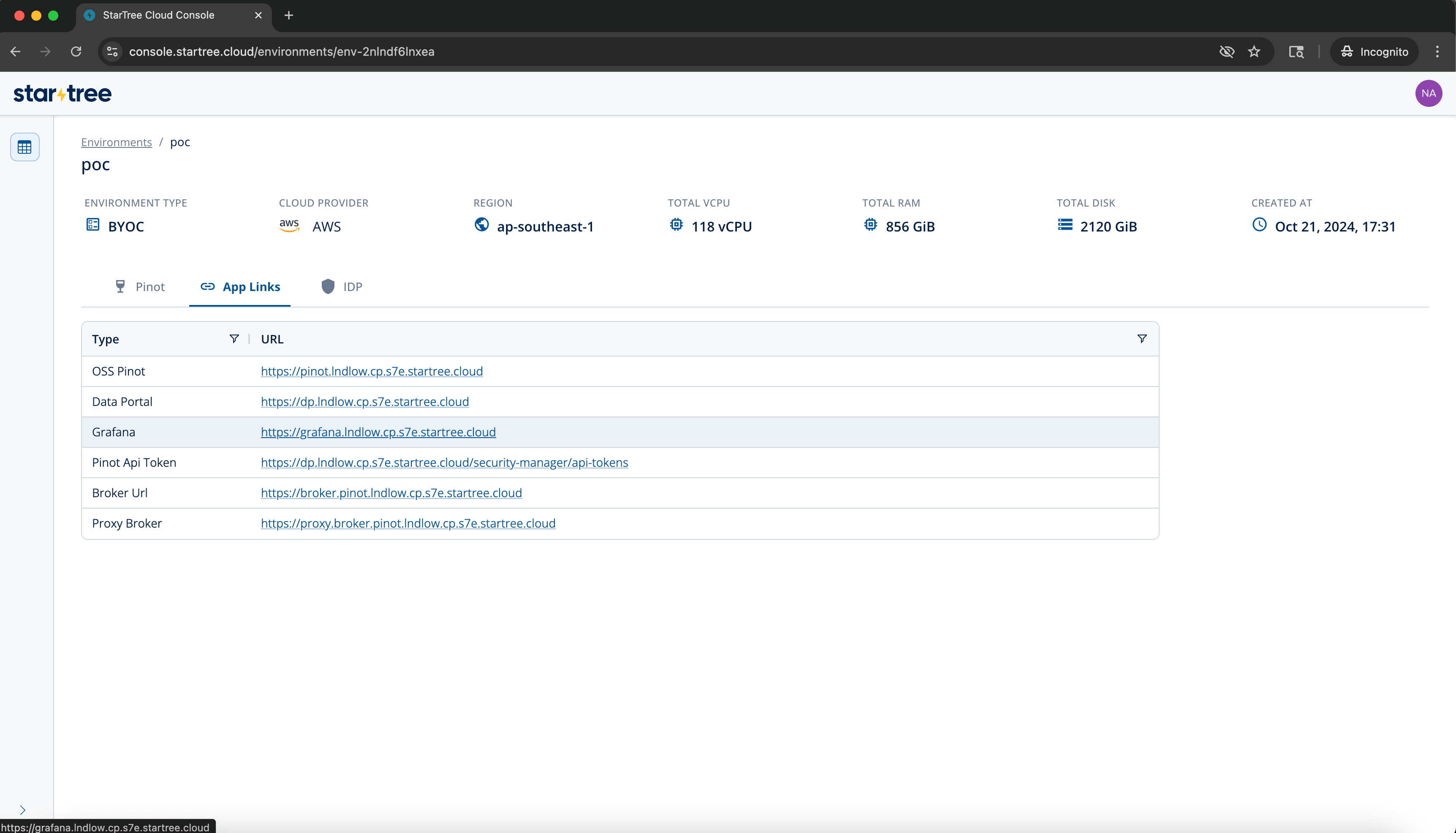 The App Links tab lists all service endpoints for the environment. Use these to connect your tools and pipelines directly to the cluster.
| Link type | What it's for |
| ------------ | -------------------------------------------------------------------------------- |
| OSS Pinot | The Apache Pinot UI for query and schema management |
| Data Portal | StarTree Data Portal for data set management, Query console and admin operations |
| Grafana | Metrics and dashboards for the cluster |
| Broker URL | Direct broker endpoint for queries |
| Proxy Broker | Proxy broker endpoint for external query routing |
### IDP Tab
The IDP (Identity Provider) tab lets you configure external authentication for your environment. Users will be able to log in to your Pinot cluster using your organization's existing identity system.
The App Links tab lists all service endpoints for the environment. Use these to connect your tools and pipelines directly to the cluster.
| Link type | What it's for |
| ------------ | -------------------------------------------------------------------------------- |
| OSS Pinot | The Apache Pinot UI for query and schema management |
| Data Portal | StarTree Data Portal for data set management, Query console and admin operations |
| Grafana | Metrics and dashboards for the cluster |
| Broker URL | Direct broker endpoint for queries |
| Proxy Broker | Proxy broker endpoint for external query routing |
### IDP Tab
The IDP (Identity Provider) tab lets you configure external authentication for your environment. Users will be able to log in to your Pinot cluster using your organization's existing identity system.
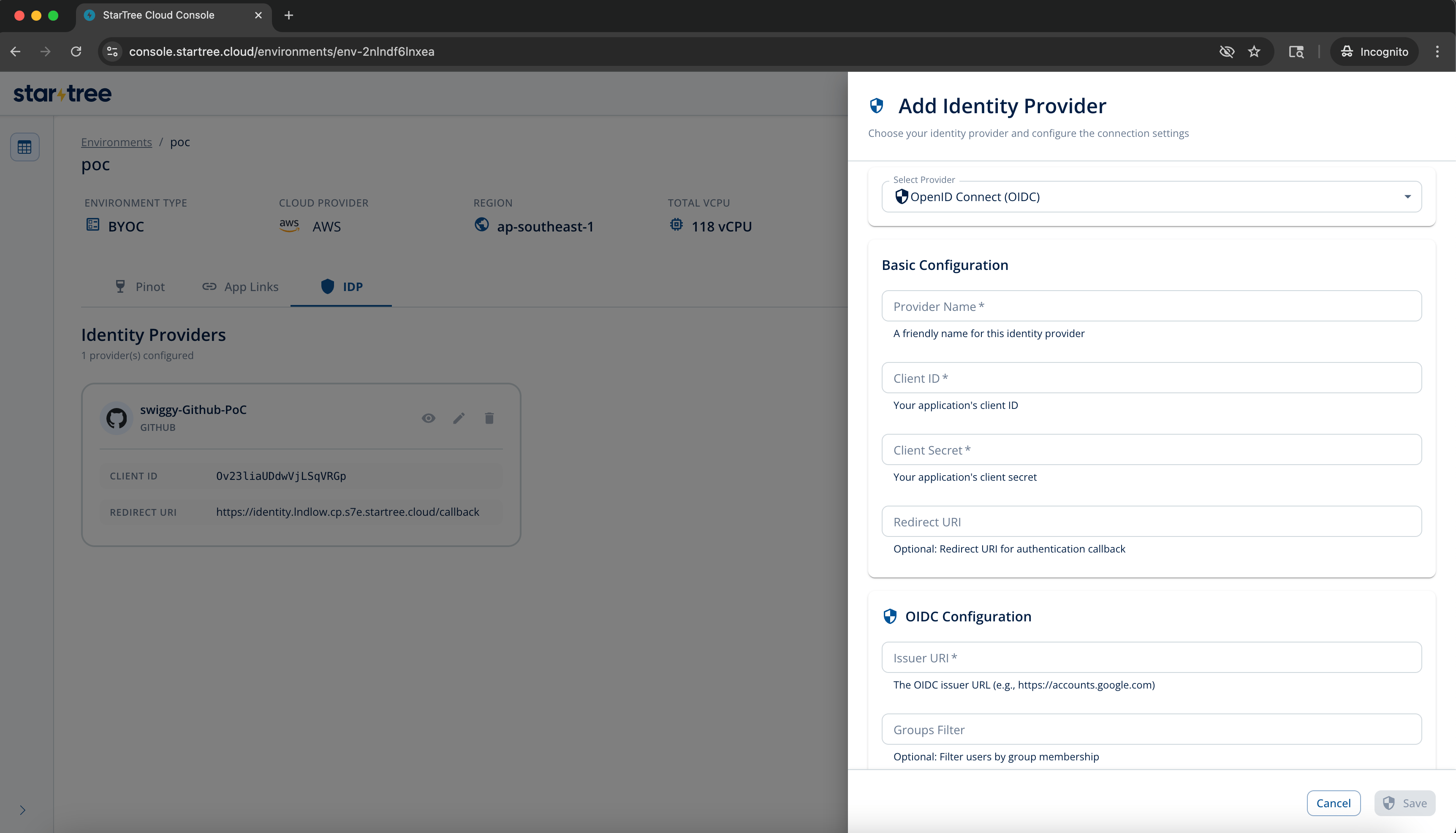 **Viewing configured providers** — Each configured provider is shown as a card with its type (e.g., GitHub), client ID, and redirect URI.
**Adding a provider** — Click **+ Add Provider** and fill in the form:
* **Provider type** — Choose OpenID Connect (OIDC) or GitHub
* **Provider Name** — A friendly label for this provider
* **Client ID** and **Client Secret** — From your identity provider's app registration
* **Redirect URI** — Auto-populated; copy this into your identity provider's allowed callback URLs
* **Issuer URI** (OIDC only) — The OIDC issuer URL (e.g., `https://accounts.google.com`)
* **Groups Filter** (optional) — Restrict access to users in specific groups
You can view, edit, or delete existing providers using the icons on each provider card.
***
## Coming Soon
The following features are on the roadmap:
**Self-service capacity management** — Scale your Pinot Servers, Brokers, and Minion pools directly from the console without opening a support ticket. Set instance counts and resource profiles on demand.
**Usage dashboard** — View vCPU-hour consumption, memory usage, and storage trends over time — broken down by component and environment over time — to understand your resource footprint.
**Viewing configured providers** — Each configured provider is shown as a card with its type (e.g., GitHub), client ID, and redirect URI.
**Adding a provider** — Click **+ Add Provider** and fill in the form:
* **Provider type** — Choose OpenID Connect (OIDC) or GitHub
* **Provider Name** — A friendly label for this provider
* **Client ID** and **Client Secret** — From your identity provider's app registration
* **Redirect URI** — Auto-populated; copy this into your identity provider's allowed callback URLs
* **Issuer URI** (OIDC only) — The OIDC issuer URL (e.g., `https://accounts.google.com`)
* **Groups Filter** (optional) — Restrict access to users in specific groups
You can view, edit, or delete existing providers using the icons on each provider card.
***
## Coming Soon
The following features are on the roadmap:
**Self-service capacity management** — Scale your Pinot Servers, Brokers, and Minion pools directly from the console without opening a support ticket. Set instance counts and resource profiles on demand.
**Usage dashboard** — View vCPU-hour consumption, memory usage, and storage trends over time — broken down by component and environment over time — to understand your resource footprint.