> ## Documentation Index
> Fetch the complete documentation index at: https://docs.startree.ai/llms.txt
> Use this file to discover all available pages before exploring further.
# How to Remove a Server
In this recipe we'll learn how to remove a server from a Pinot cluster.
## Prerequisites
To follow the code examples in this guide, you must [install Docker](https://docs.docker.com/get-docker/) locally and download recipes.
## Navigate to recipe
1. If you haven't already, download recipes.
2. In terminal, go to the recipe by running the following command:
```bash theme={null}
cd pinot-recipes/recipes/removing-server
```
## Launching Pinot Cluster
Create Kubernetes cluster:
```bash theme={null}
kind create cluster
```
You can spin up a Pinot Cluster by running the following command:
```bash theme={null}
helm repo add pinot https://raw.githubusercontent.com/apache/pinot/master/kubernetes/helm
kubectl create ns pinot-quickstart
helm install pinot pinot/pinot \
-n pinot-quickstart \
--set cluster.name=pinot \
--set server.replicaCount=4
```
Port Forward Pinot UI on port `9000`
```bash theme={null}
kubectl port-forward service/pinot-controller 9000:9000 -n pinot-quickstart
```
```bash theme={null}
helm repo add kafka https://charts.bitnami.com/bitnami
helm install -n pinot-quickstart kafka kafka/kafka --set replicas=1,zookeeper.image.tag=latest
```
Port forward Kafka on port 9090
```bash theme={null}
kubectl port-forward service/kafka-headless 9092:9092 -n pinot-quickstart
```
Add following line to `/etc/hosts`
```
127.0.0.1 kafka-0.kafka-headless.pinot-quickstart.svc.cluster.local
```
Next, we're going to deploy a Kafka pod and connect to it:
```bash theme={null}
kubectl run kafka-client --restart='Never' --image docker.io/bitnami/kafka:3.4.0-debian-11-r22 --namespace pinot-quickstart --command -- sleep infinity
kubectl exec --tty -i kafka-client --namespace pinot-quickstart -- bash
```
We're going to create the `events` topic with 5 partitions, by running the following command:
```bash theme={null}
kafka-topics.sh \
--create --bootstrap-server localhost:9092 \
--replication-factor 1 \
--partitions 5 \
--topic events
```
## Generating data
This recipe contains a data generator that creates events with a timestamp, count, and UUID.
You can generate data by running the following command:
```bash theme={null}
python datagen.py 2>/dev/null | head -n1 | jq
```
Output is shown below:
```json theme={null}
{
"ts": 1680171022742,
"uuid": "5328f9b8-83ff-4e4c-8ea1-d09524866841",
"count": 260
}
```
## Ingesting data into Kafka
We're going to ingest this data into an Apache Kafka topic using the [kcat](https://github.com/edenhill/kcat) command line tool.
We'll also use `jq` to structure the data in the `key:payload` structure that Kafka expects:
```bash theme={null}
python datagen.py --sleep 0.0001 2>/dev/null |
jq -cr --arg sep ø '[.uuid, tostring] | join($sep)' |
kcat -P -b localhost:9092 -t events -Kø
```
## Adding Pinot Schema and Table
Now let's create a Pinot Schema and Table.
First, the schema:
```json theme={null}
{
"schemaName": "events",
"dimensionFieldSpecs": [{"name": "uuid", "dataType": "STRING"}],
"metricFieldSpecs": [{"name": "count", "dataType": "INT"}],
"dateTimeFieldSpecs": [
{
"name": "ts",
"dataType": "TIMESTAMP",
"format": "1:MILLISECONDS:EPOCH",
"granularity": "1:MILLISECONDS"
}
]
}
```
*schema.json*
Now for the table config:
```json theme={null}
{
"tableName": "events",
"tableType": "REALTIME",
"segmentsConfig": {
"timeColumnName": "ts",
"timeType": "DAYS",
"retentionTimeUnit": "DAYS",
"retentionTimeValue": "3650",
"segmentPushType": "APPEND",
"segmentAssignmentStrategy": "BalanceNumSegmentAssignmentStrategy",
"schemaName": "events",
"replication": "2",
"replicasPerPartition": "2"
},
"tenants": {},
"ingestionConfig":{
"transformConfigs": [
{
"columnName": "ts",
"transformFunction": "FromDateTime(tsString, 'YYYY-MM-dd''T''HH:mm:ss.SSSSSS''Z''')"
}
]
},
"tableIndexConfig": {
"loadMode": "MMAP",
"streamConfigs": {
"streamType": "kafka",
"stream.kafka.consumer.type": "simple",
"stream.kafka.topic.name": "events",
"stream.kafka.decoder.class.name": "org.apache.pinot.plugin.stream.kafka.KafkaJSONMessageDecoder",
"stream.kafka.consumer.factory.class.name": "org.apache.pinot.plugin.stream.kafka20.KafkaConsumerFactory",
"stream.kafka.hlc.zk.connect.string": "kafka-zookeeper:2181",
"stream.kafka.zk.broker.url": "kafka-zookeeper:2181",
"stream.kafka.broker.list": "kafka:9092",
"realtime.segment.flush.threshold.time": "3600000",
"realtime.segment.flush.threshold.size": "50000",
"stream.kafka.consumer.prop.auto.offset.reset": "smallest"
}
},
"metadata": {
"customConfigs": {}
}
}
```
*table.json*
```bash theme={null}
kubectl apply -f config/pinot-events.yml
```
## Checking segment assignment
As soon as this config has been applied, Pinot will start ingesting the data from Kafka.
We'll let it run for a little while and then run the following script to check segment assignment:
```bash theme={null}
python segments_to_server.py \
--segments-to-servers false \
--partitions-to-servers false \
--servers-to-partitions true
```
**Output**
```text theme={null}
Server_pinot-server-0 OrderedSet(['1', '3'])
Server_pinot-server-1 OrderedSet(['0', '2', '4'])
Server_pinot-server-2 OrderedSet(['0', '2', '4'])
Server_pinot-server-3 OrderedSet(['1', '3'])
```
We can see that the partitions are spread across servers 0-3.
## Removing server from cluster
Next, we're going to remove a server from the Pinot cluster:
```bash theme={null}
kubectl scale statefulset.apps/pinot-server -n pinot-quickstart --replicas=3
```
After we've done this, be should see one 'dead' server on the Pinot UI:
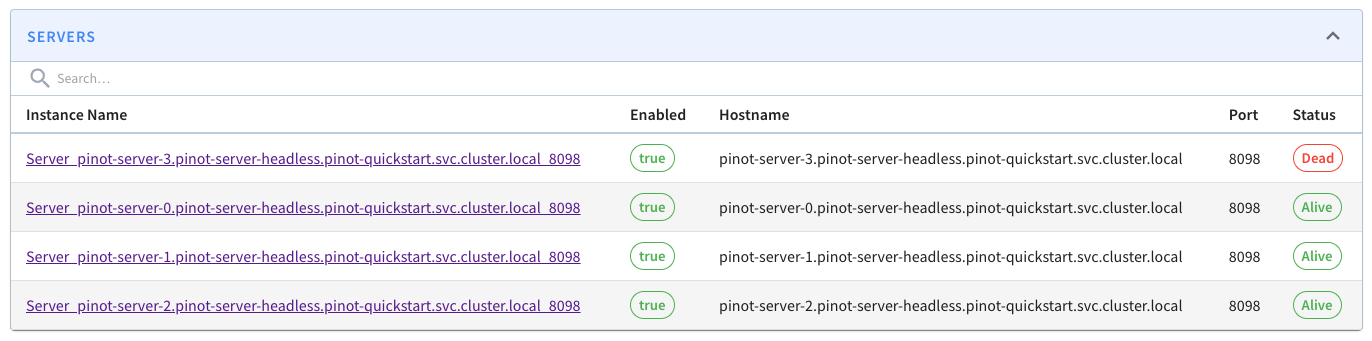 List of Pinot servers with one dead
In this example server 3 has been removed, but your mileage may vary.
So, the underlying server has been removed, but Pinot still thinks its there.
Pinot has an API that lets us remove instances, so let's try that out:
Try to remove the instance:
```bash theme={null}
instance="Server_pinot-server-3.pinot-server-headless.pinot-quickstart.svc.cluster.local_8098"
curl -X DELETE \
"http://localhost:9000/instances/${instance}" \
-H "accept: application/json"
```
```json title="Output (shortened for brevity)" theme={null}
{
"code": 409,
"error": "Failed to drop instance - Instance exists in ideal state for events_REALTIME"
}
```
It didn't work because the server is still part of the ideal state for the table.
## Removing tags from server
To fix this, we need to first remove all the tags from that server, by running the following:
```bash theme={null}
instance="Server_pinot-server-3.pinot-server-headless.pinot-quickstart.svc.cluster.local_8098"
curl -X PUT \
"http://localhost:9000/instances/${instance}/updateTags?tags=&updateBrokerResource=false" \
-H "accept: application/json"
```
**Output**
```json theme={null}
{
"status":"Updated tags: [] for instance: Server_pinot-server-3.pinot-server-headless.pinot-quickstart.svc.cluster.local_8098"
}
```
This will prevent any new segments being assigned to this server, but we still have one more step to do.
## Rebalancing segments
The next is to rebalanae the segments so that any assigned to server 3 will be moved elsewhere.
The API that does this takes in a lot of parameters, so we've wrapped it in the `rebalance.py` script, which you can download from GitHub.
The contents are shown below:
```python theme={null}
import requests
import click
import json
@click.command()
@click.option('--table_name', default="events", help='Table name')
def run_rebalance(table_name):
base_url = f"http://localhost:9000/tables/{table_name}/rebalance"
params = {
'type': 'realtime',
'dryRun': 'false',
'reassignInstances': 'true',
'includeConsuming': 'false',
'bootstrap': 'false',
'downtime': 'false',
'minAvailableReplicas': '1',
'bestEfforts': 'false',
'externalViewCheckIntervalInMs': '1000',
'externalViewStabilizationTimeoutInMs': '3600000',
'updateTargetTier': 'false',
}
response = requests.post(base_url, params=params)
print(response.url)
print(response.status_code)
print(json.dumps(response.json(), indent=4))
if __name__ == '__main__':
run_rebalance()
```
*rebalance.py*
Adjust those parameters accordingly before you run the script.
You can run the script like this:
```bash theme={null}
python rebalance.py
```
If you then wait a few seconds or maybe longer depending on how many segments you have, the segments will be rebalanced.
At the time we're writing this guide there isn't an API to check on the progress of rebalancing, but this will be added in Pinot 0.13.
You can manually check if it's completed by running the following script again:
```bash theme={null}
python segments_to_server.py \
--segments-to-servers false \
--partitions-to-servers false \
--servers-to-partitions true
```
Once rebalancing has completed, you shouldn't see server 3 in the output:
**Output**
```text theme={null}
Server_pinot-server-0 OrderedSet(['1', '2', '4'])
Server_pinot-server-1 OrderedSet(['0', '1', '3', '4'])
Server_pinot-server-2 OrderedSet(['0', '2', '3'])
```
## Removing instance from Pinot
And once that's the case, we can retry the API that removes the instance from Pinot:
```bash theme={null}
instance="Server_pinot-server-3.pinot-server-headless.pinot-quickstart.svc.cluster.local_8098"
curl -X DELETE \
"http://localhost:9000/instances/${instance}" \
-H "accept: application/json"
```
**Output**
```json theme={null}
{
"status":"Successfully dropped instance"
}
```
List of Pinot servers with one dead
In this example server 3 has been removed, but your mileage may vary.
So, the underlying server has been removed, but Pinot still thinks its there.
Pinot has an API that lets us remove instances, so let's try that out:
Try to remove the instance:
```bash theme={null}
instance="Server_pinot-server-3.pinot-server-headless.pinot-quickstart.svc.cluster.local_8098"
curl -X DELETE \
"http://localhost:9000/instances/${instance}" \
-H "accept: application/json"
```
```json title="Output (shortened for brevity)" theme={null}
{
"code": 409,
"error": "Failed to drop instance - Instance exists in ideal state for events_REALTIME"
}
```
It didn't work because the server is still part of the ideal state for the table.
## Removing tags from server
To fix this, we need to first remove all the tags from that server, by running the following:
```bash theme={null}
instance="Server_pinot-server-3.pinot-server-headless.pinot-quickstart.svc.cluster.local_8098"
curl -X PUT \
"http://localhost:9000/instances/${instance}/updateTags?tags=&updateBrokerResource=false" \
-H "accept: application/json"
```
**Output**
```json theme={null}
{
"status":"Updated tags: [] for instance: Server_pinot-server-3.pinot-server-headless.pinot-quickstart.svc.cluster.local_8098"
}
```
This will prevent any new segments being assigned to this server, but we still have one more step to do.
## Rebalancing segments
The next is to rebalanae the segments so that any assigned to server 3 will be moved elsewhere.
The API that does this takes in a lot of parameters, so we've wrapped it in the `rebalance.py` script, which you can download from GitHub.
The contents are shown below:
```python theme={null}
import requests
import click
import json
@click.command()
@click.option('--table_name', default="events", help='Table name')
def run_rebalance(table_name):
base_url = f"http://localhost:9000/tables/{table_name}/rebalance"
params = {
'type': 'realtime',
'dryRun': 'false',
'reassignInstances': 'true',
'includeConsuming': 'false',
'bootstrap': 'false',
'downtime': 'false',
'minAvailableReplicas': '1',
'bestEfforts': 'false',
'externalViewCheckIntervalInMs': '1000',
'externalViewStabilizationTimeoutInMs': '3600000',
'updateTargetTier': 'false',
}
response = requests.post(base_url, params=params)
print(response.url)
print(response.status_code)
print(json.dumps(response.json(), indent=4))
if __name__ == '__main__':
run_rebalance()
```
*rebalance.py*
Adjust those parameters accordingly before you run the script.
You can run the script like this:
```bash theme={null}
python rebalance.py
```
If you then wait a few seconds or maybe longer depending on how many segments you have, the segments will be rebalanced.
At the time we're writing this guide there isn't an API to check on the progress of rebalancing, but this will be added in Pinot 0.13.
You can manually check if it's completed by running the following script again:
```bash theme={null}
python segments_to_server.py \
--segments-to-servers false \
--partitions-to-servers false \
--servers-to-partitions true
```
Once rebalancing has completed, you shouldn't see server 3 in the output:
**Output**
```text theme={null}
Server_pinot-server-0 OrderedSet(['1', '2', '4'])
Server_pinot-server-1 OrderedSet(['0', '1', '3', '4'])
Server_pinot-server-2 OrderedSet(['0', '2', '3'])
```
## Removing instance from Pinot
And once that's the case, we can retry the API that removes the instance from Pinot:
```bash theme={null}
instance="Server_pinot-server-3.pinot-server-headless.pinot-quickstart.svc.cluster.local_8098"
curl -X DELETE \
"http://localhost:9000/instances/${instance}" \
-H "accept: application/json"
```
**Output**
```json theme={null}
{
"status":"Successfully dropped instance"
}
```