> ## Documentation Index
> Fetch the complete documentation index at: https://docs.startree.ai/llms.txt
> Use this file to discover all available pages before exploring further.
# Backfill offline segment
> In this Apache Pinot recipe we'll learn how to backfill a segment moved from a real-time to offline table using the real-time to offline job.
In this recipe we'll learn how to backfill a segment moved from a real-time to offline table using the [real-time to offline job](/recipes/real-time-offline-job).
| Pinot Version | 0.9.3 |
| ------------- | --------------------------------------------------------------------------------------------------------------- |
| Code | [startreedata/pinot-recipes/backfill](https://github.com/startreedata/pinot-recipes/tree/main/recipes/backfill) |
## Prerequisites
To follow the code examples in this guide, you must [install Docker](https://docs.docker.com/get-docker/) locally and download recipes.
## Navigate to recipe
1. If you haven't already, download recipes.
2. In terminal, run the following command to navigate to the recipe:
```sh theme={null}
cd pinot-recipes/recipes/backfill
```
## Launch Pinot Cluster
You can spin up a Pinot Cluster by running the following command:
```bash theme={null}
docker-compose up
```
or (if you're using a Mac M1/M2)
```bash theme={null}
docker-compose -f docker-compose-m1.yml up
```
This command will run a single instance of the Pinot Controller, Pinot Server, Pinot Broker, Pinot Minion, Kafka, and Zookeeper.
You can find the [docker-compose.yml](https://github.com/startreedata/pinot-recipes/blob/main/recipes/backfill/docker-compose.yml) file on GitHub.
## Pinot Schema and Tables
Now let's create a Pinot Schema, as well as real-time and offline tables. Pinot is going to take care of populating data into the offline table, but it still expects us to configure the table.
### Schema
Our schema is going to capture some order events, and looks like this:
```json theme={null}
{
"schemaName": "orders",
"dimensionFieldSpecs": [{
"name": "order_id",
"dataType": "INT"
},
{
"name": "customer_id",
"dataType": "INT"
},
{
"name": "order_status",
"dataType": "STRING"
}
],
"metricFieldSpecs": [{
"name": "amount",
"dataType": "FLOAT"
}],
"dateTimeFieldSpecs": [{
"name": "ts",
"dataType": "LONG",
"format": "1:MILLISECONDS:EPOCH",
"granularity": "1:MILLISECONDS"
}]
}
```
*config/orders\_schema.json*
### Real-Time Table
And the real-time table is defined below:
```json theme={null}
{
"tableName": "orders",
"tableType": "REALTIME",
"segmentsConfig": {
"timeColumnName": "ts",
"timeType": "MILLISECONDS",
"segmentPushType": "APPEND",
"segmentAssignmentStrategy": "BalanceNumSegmentAssignmentStrategy",
"schemaName": "orders",
"replicasPerPartition": "1"
},
"task": {
"taskTypeConfigsMap": {
"RealtimeToOfflineSegmentsTask": {
"bucketTimePeriod": "2h",
"bufferTimePeriod": "1m"
}
}
},
"tenants": {},
"tableIndexConfig": {
"loadMode": "MMAP",
"streamConfigs": {
"streamType": "kafka",
"stream.kafka.consumer.type": "lowLevel",
"stream.kafka.topic.name": "orders",
"stream.kafka.decoder.class.name": "org.apache.pinot.plugin.stream.kafka.KafkaJSONMessageDecoder",
"stream.kafka.consumer.factory.class.name": "org.apache.pinot.plugin.stream.kafka20.KafkaConsumerFactory",
"stream.kafka.broker.list": "kafka:9093",
"realtime.segment.flush.threshold.rows": 5
}
},
"metadata": {
"customConfigs": {}
},
"routing": {
"instanceSelectorType": "strictReplicaGroup"
}
}
```
*config/orders\_table.json*
The `realtime.segment.flush.threshold.rows` config is intentionally set to an extremely small value so that the segment will be committed after 5 records have been ingested.
In a production system this value should be set much higher, as described in the [configuring segment threshold](/recipes/configuring-segment-threshold) guide.
You can create the table and schema by running the following command:
```bash theme={null}
docker run \
--network backfill \
-v $PWD/config:/config \
apachepinot/pinot:1.0.0 AddTable \
-schemaFile /config/orders_schema.json \
-tableConfigFile /config/orders_table.json \
-controllerHost "pinot-controller" \
-exec
```
### Offline Table
The offline table config is defined below:
```json theme={null}
{
"tableName": "events",
"tableType": "OFFLINE",
"segmentsConfig": {
"timeColumnName": "ts",
"schemaName": "events",
"replication": "1",
"replicasPerPartition": "1"
},
"ingestionConfig": {
"batchIngestionConfig": {
"segmentIngestionType": "APPEND",
"segmentIngestionFrequency": "HOURLY"
}
},
"tableIndexConfig": {
"loadMode": "MMAP"
},
"tenants": {},
"metadata": {}
}
```
*config/orders\_offline\_table.json*
You can create this table by running the following command:
```bash theme={null}
docker run \
--network backfill \
-v $PWD/config:/config \
apachepinot/pinot:1.0.0 AddTable \
-schemaFile /config/orders_schema.json \
-tableConfigFile /config/orders_offline_table.json \
-controllerHost "pinot-controller" \
-update -exec
```
## Ingesting Data
Let's ingest data into the `events` Kafka topic, by running the following:
```bash theme={null}
docker exec -it kafka /opt/kafka/bin/kafka-console-producer.sh \
--bootstrap-server kafka:9092 --topic orders
{"order_id":1,"customer_id":101,"order_status":"OPEN","amount":13.29,"ts":"1632463351000"}
{"order_id":2,"customer_id":102,"order_status":"IN_TRANSIT","amount":209.35,"ts":"1632463361000"}
{"order_id":3,"customer_id":103,"order_status":"COMPLETED","amount":199.35,"ts":"1632463391000"}
{"order_id":4,"customer_id":105,"order_status":"COMPLETED","amount":3.24,"ts":"1632467065000"}
{"order_id":5,"customer_id":103,"order_status":"OPEN","amount":9.77,"ts":"1632467066000"}
{"order_id":6,"customer_id":104,"order_status":"OPEN","amount":55.52,"ts":"1632467068000"}
{"order_id":7,"customer_id":104,"order_status":"CANCELLED","amount":52.54,"ts":"1632467070000"}
{"order_id":8,"customer_id":105,"order_status":"OPEN","amount":13.29,"ts":"1632667070000"}
{"order_id":9,"customer_id":105,"order_status":"IN_TRANSIT","amount":2.92,"ts":"1632667170000"}
{"order_id":10,"customer_id":105,"order_status":"COMPLETED","amount":12.22,"ts":"1632677270000"}
{"order_id":11,"customer_id":106,"order_status":"OPEN","amount":13.94,"ts":"1632677270400"}
{"order_id":12,"customer_id":107,"order_status":"OPEN","amount":20.32,"ts":"1632677270403"}
{"order_id":13,"customer_id":108,"order_status":"OPEN","amount":45.11,"ts":"1632677270508"}
{"order_id":14,"customer_id":109,"order_status":"OPEN","amount":129.22,"ts":"1632677270699"}
```
Data will make its way into the real-time table. We can see how many records have been ingested by running the following query:
```sql theme={null}
select *
from orders
order by order_id
limit 10
```
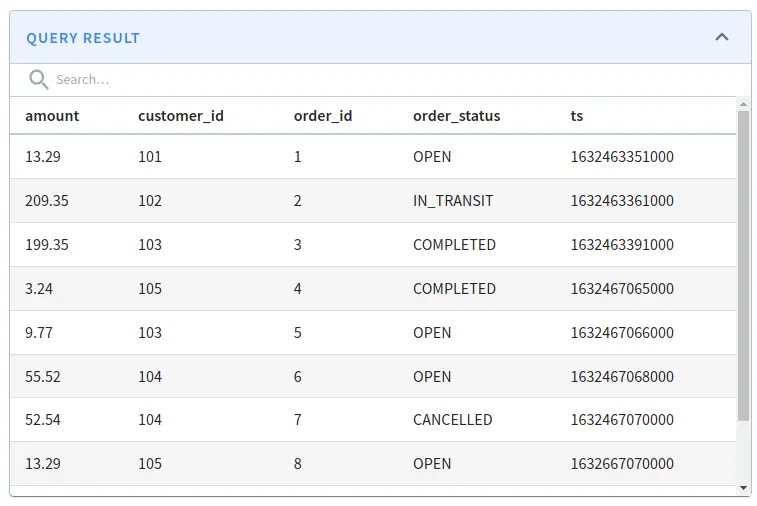 *Orders query results*
## Scheduling the RT2OFF Job
The Real-Time to Offline Job can be scheduled automatically via the real-time table config or manually via the REST API. We can trigger it manually by running the following command:
```bash theme={null}
table="orders_REALTIME"
curl -X POST \
"http://localhost:9000/tasks/schedule?taskType=RealtimeToOfflineSegmentsTask&tableName=${table}" \
-H "accept: application/json" 2>/dev/null | jq '.'
```
**Output**
```json theme={null}
{
"RealtimeToOfflineSegmentsTask": "Task_RealtimeToOfflineSegmentsTask_1647620599577"
}
```
We can then check the Pinot Controller logs to see that it's been triggered:
```bash theme={null}
docker exec -it pinot-controller grep -i "\[RealtimeToOff" logs/pinot-all.log
```
**Output**
```text theme={null}
2022/03/21 10:58:29.746 INFO [RealtimeToOfflineSegmentsTaskGenerator] [grizzly-http-server-1] Start generating task configs for table: orders_REALTIME for task: RealtimeToOfflineSegmentsTask
2022/03/21 10:58:29.763 INFO [RealtimeToOfflineSegmentsTaskGenerator] [grizzly-http-server-1] Finished generating task configs for table: orders_REALTIME for task: RealtimeToOfflineSegmentsTask
```
Now let's navigate to [localhost:9000/#/tables](http://localhost:9000/#/tables). You'll see the following:
*Orders query results*
## Scheduling the RT2OFF Job
The Real-Time to Offline Job can be scheduled automatically via the real-time table config or manually via the REST API. We can trigger it manually by running the following command:
```bash theme={null}
table="orders_REALTIME"
curl -X POST \
"http://localhost:9000/tasks/schedule?taskType=RealtimeToOfflineSegmentsTask&tableName=${table}" \
-H "accept: application/json" 2>/dev/null | jq '.'
```
**Output**
```json theme={null}
{
"RealtimeToOfflineSegmentsTask": "Task_RealtimeToOfflineSegmentsTask_1647620599577"
}
```
We can then check the Pinot Controller logs to see that it's been triggered:
```bash theme={null}
docker exec -it pinot-controller grep -i "\[RealtimeToOff" logs/pinot-all.log
```
**Output**
```text theme={null}
2022/03/21 10:58:29.746 INFO [RealtimeToOfflineSegmentsTaskGenerator] [grizzly-http-server-1] Start generating task configs for table: orders_REALTIME for task: RealtimeToOfflineSegmentsTask
2022/03/21 10:58:29.763 INFO [RealtimeToOfflineSegmentsTaskGenerator] [grizzly-http-server-1] Finished generating task configs for table: orders_REALTIME for task: RealtimeToOfflineSegmentsTask
```
Now let's navigate to [localhost:9000/#/tables](http://localhost:9000/#/tables). You'll see the following:
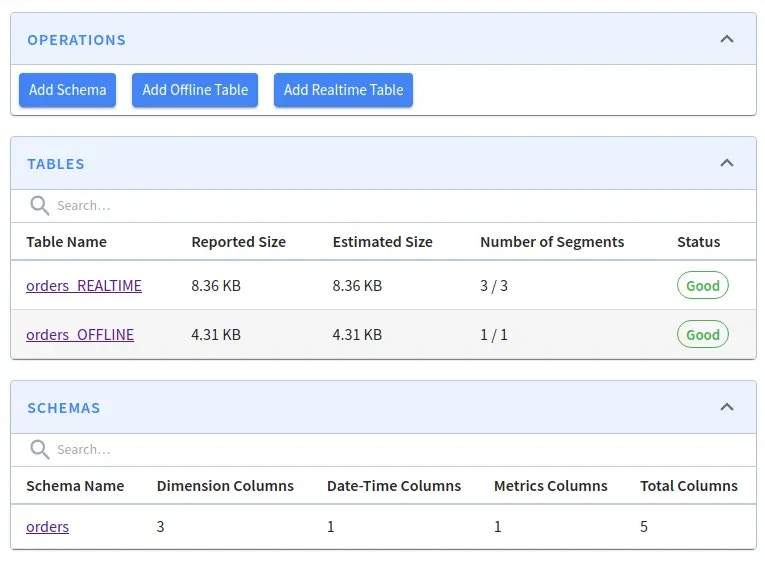 Real-Time and Offline Tables
You can see that a segment has been created in the offline table:
## Viewing offline segment
You can list all the segments for a table by making the following request to the HTTP API:
```bash theme={null}
table="orders"
curl -X GET "http://localhost:9000/segments/${table}" \
-H "accept: application/json" 2>/dev/null | jq '.'
```
**Output**
```json theme={null}
[
{
"OFFLINE": [
"orders_1632463351000_1632467070000_0"
]
},
{
"REALTIME": [
"orders__0__0__20220321T0941Z",
"orders__0__1__20220321T0941Z",
"orders__0__2__20220321T0941Z"
]
}
]
```
We have one offline segment - `orders_1632463351000_1632467070000_0`. You can check which records it contains by running the following query:
```sql theme={null}
select *
from orders_OFFLINE
order by order_id
limit 10
```
Real-Time and Offline Tables
You can see that a segment has been created in the offline table:
## Viewing offline segment
You can list all the segments for a table by making the following request to the HTTP API:
```bash theme={null}
table="orders"
curl -X GET "http://localhost:9000/segments/${table}" \
-H "accept: application/json" 2>/dev/null | jq '.'
```
**Output**
```json theme={null}
[
{
"OFFLINE": [
"orders_1632463351000_1632467070000_0"
]
},
{
"REALTIME": [
"orders__0__0__20220321T0941Z",
"orders__0__1__20220321T0941Z",
"orders__0__2__20220321T0941Z"
]
}
]
```
We have one offline segment - `orders_1632463351000_1632467070000_0`. You can check which records it contains by running the following query:
```sql theme={null}
select *
from orders_OFFLINE
order by order_id
limit 10
```
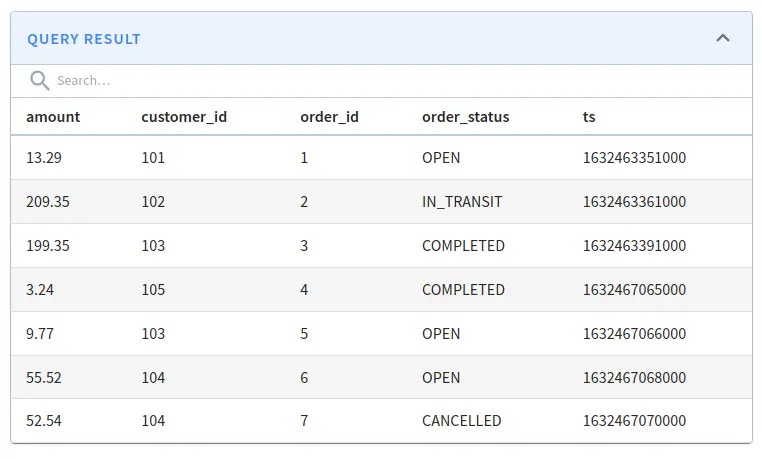 *Orders offline table query results*
The offline table contains only the first 7 records that we ingested.
## Replacing offline segment
Let's now backfill those 7 records to increase the value in the amount column by 20%.
The documents with the updated amount value are in `data/orders.json`, shown below:
```json theme={null}
{"order_id": 1, "customer_id": 101, "order_status": "OPEN", "amount": 15.947999999999999, "ts": "1632463351000"}
{"order_id": 2, "customer_id": 102, "order_status": "IN_TRANSIT", "amount": 251.21999999999997, "ts": "1632463361000"}
{"order_id": 3, "customer_id": 103, "order_status": "COMPLETED", "amount": 239.21999999999997, "ts": "1632463391000"}
{"order_id": 4, "customer_id": 105, "order_status": "COMPLETED", "amount": 3.888, "ts": "1632467065000"}
{"order_id": 5, "customer_id": 103, "order_status": "OPEN", "amount": 11.723999999999998, "ts": "1632467066000"}
{"order_id": 6, "customer_id": 104, "order_status": "OPEN", "amount": 66.624, "ts": "1632467068000"}
{"order_id": 7, "customer_id": 104, "order_status": "CANCELLED", "amount": 63.047999999999995, "ts": "1632467070000"}
```
*data/orders.json*
We'll ingest this file using the following ingestion spec:
```yaml {5-8} theme={null}
executionFrameworkSpec:
name: 'standalone'
segmentGenerationJobRunnerClassName: 'org.apache.pinot.plugin.ingestion.batch.standalone.SegmentGenerationJobRunner'
segmentTarPushJobRunnerClassName: 'org.apache.pinot.plugin.ingestion.batch.standalone.SegmentTarPushJobRunner'
segmentNameGeneratorSpec:
type: fixed
configs:
segment.name: ${segmentName}
jobType: SegmentCreationAndTarPush
inputDirURI: '/data'
includeFileNamePattern: 'glob:**/orders.json'
outputDirURI: '/opt/pinot/data/orders/'
overwriteOutput: true
pinotFSSpecs:
- scheme: file
className: org.apache.pinot.spi.filesystem.LocalPinotFS
recordReaderSpec:
dataFormat: 'json'
className: 'org.apache.pinot.plugin.inputformat.json.JSONRecordReader'
tableSpec:
tableName: 'orders'
pinotClusterSpecs:
- controllerURI: '${pinotController}'
pushJobSpec:
pushAttempts: 2
pushRetryIntervalMillis: 1000
```
*config/job-spec.yml*
Now let's run the job to replace segment `orders_1632463351000_1632467070000_0`:
```bash theme={null}
docker run \
--network backfill \
-v $PWD/config:/config \
-v $PWD/data:/data \
apachepinot/pinot:1.0.0 LaunchDataIngestionJob \
-jobSpecFile /config/job-spec.yml \
-values segmentName='orders_1632463351000_1632467070000_0' \
-values pinotController=http://pinot-controller:9000
```
Once we've done that, we need to update the time boundary so that it starts from the latest time in the offline table:
```bash theme={null}
curl -X POST \
"http://localhost:9000/tables/orders/timeBoundary" \
-H "accept: application/json"
```
We can re-run the query on the `orders` table:
```sql theme={null}
select $segmentName,
*
from orders
ORDER BY order_id
limit 20
```
And we'll see that the `amount` column for the first 7 orders has been updated:
| \$segmentName | amount | customer\_id | order\_id | order\_status | ts |
| --------------------------------------- | ------ | ------------ | --------- | ------------- | ------------- |
| orders\_1632463351000\_1632467070000\_0 | 15.948 | 101 | 1 | OPEN | 1632463351000 |
| orders\_1632463351000\_1632467070000\_0 | 251.22 | 102 | 2 | IN\_TRANSIT | 1632463361000 |
| orders\_1632463351000\_1632467070000\_0 | 239.22 | 103 | 3 | COMPLETED | 1632463391000 |
| orders\_1632463351000\_1632467070000\_0 | 3.888 | 105 | 4 | COMPLETED | 1632467065000 |
| orders\_1632463351000\_1632467070000\_0 | 11.724 | 103 | 5 | OPEN | 1632467066000 |
| orders\_1632463351000\_1632467070000\_0 | 66.624 | 104 | 6 | OPEN | 1632467068000 |
| orders\_1632463351000\_1632467070000\_0 | 63.048 | 104 | 7 | CANCELLED | 1632467070000 |
| orders\_\_0\_\_1\_\_20230321T1038Z | 13.29 | 105 | 8 | OPEN | 1632667070000 |
| orders\_\_0\_\_1\_\_20230321T1038Z | 2.92 | 105 | 9 | IN\_TRANSIT | 1632667170000 |
| orders\_\_0\_\_1\_\_20230321T1038Z | 12.22 | 105 | 10 | COMPLETED | 1632677270000 |
| orders\_\_0\_\_2\_\_20230321T1038Z | 13.94 | 106 | 11 | OPEN | 1632677270400 |
| orders\_\_0\_\_2\_\_20230321T1038Z | 20.32 | 107 | 12 | OPEN | 1632677270403 |
| orders\_\_0\_\_2\_\_20230321T1038Z | 45.11 | 108 | 13 | OPEN | 1632677270508 |
| orders\_\_0\_\_2\_\_20230321T1038Z | 129.22 | 109 | 14 | OPEN | 1632677270699 |
*Query Results*
*Orders offline table query results*
The offline table contains only the first 7 records that we ingested.
## Replacing offline segment
Let's now backfill those 7 records to increase the value in the amount column by 20%.
The documents with the updated amount value are in `data/orders.json`, shown below:
```json theme={null}
{"order_id": 1, "customer_id": 101, "order_status": "OPEN", "amount": 15.947999999999999, "ts": "1632463351000"}
{"order_id": 2, "customer_id": 102, "order_status": "IN_TRANSIT", "amount": 251.21999999999997, "ts": "1632463361000"}
{"order_id": 3, "customer_id": 103, "order_status": "COMPLETED", "amount": 239.21999999999997, "ts": "1632463391000"}
{"order_id": 4, "customer_id": 105, "order_status": "COMPLETED", "amount": 3.888, "ts": "1632467065000"}
{"order_id": 5, "customer_id": 103, "order_status": "OPEN", "amount": 11.723999999999998, "ts": "1632467066000"}
{"order_id": 6, "customer_id": 104, "order_status": "OPEN", "amount": 66.624, "ts": "1632467068000"}
{"order_id": 7, "customer_id": 104, "order_status": "CANCELLED", "amount": 63.047999999999995, "ts": "1632467070000"}
```
*data/orders.json*
We'll ingest this file using the following ingestion spec:
```yaml {5-8} theme={null}
executionFrameworkSpec:
name: 'standalone'
segmentGenerationJobRunnerClassName: 'org.apache.pinot.plugin.ingestion.batch.standalone.SegmentGenerationJobRunner'
segmentTarPushJobRunnerClassName: 'org.apache.pinot.plugin.ingestion.batch.standalone.SegmentTarPushJobRunner'
segmentNameGeneratorSpec:
type: fixed
configs:
segment.name: ${segmentName}
jobType: SegmentCreationAndTarPush
inputDirURI: '/data'
includeFileNamePattern: 'glob:**/orders.json'
outputDirURI: '/opt/pinot/data/orders/'
overwriteOutput: true
pinotFSSpecs:
- scheme: file
className: org.apache.pinot.spi.filesystem.LocalPinotFS
recordReaderSpec:
dataFormat: 'json'
className: 'org.apache.pinot.plugin.inputformat.json.JSONRecordReader'
tableSpec:
tableName: 'orders'
pinotClusterSpecs:
- controllerURI: '${pinotController}'
pushJobSpec:
pushAttempts: 2
pushRetryIntervalMillis: 1000
```
*config/job-spec.yml*
Now let's run the job to replace segment `orders_1632463351000_1632467070000_0`:
```bash theme={null}
docker run \
--network backfill \
-v $PWD/config:/config \
-v $PWD/data:/data \
apachepinot/pinot:1.0.0 LaunchDataIngestionJob \
-jobSpecFile /config/job-spec.yml \
-values segmentName='orders_1632463351000_1632467070000_0' \
-values pinotController=http://pinot-controller:9000
```
Once we've done that, we need to update the time boundary so that it starts from the latest time in the offline table:
```bash theme={null}
curl -X POST \
"http://localhost:9000/tables/orders/timeBoundary" \
-H "accept: application/json"
```
We can re-run the query on the `orders` table:
```sql theme={null}
select $segmentName,
*
from orders
ORDER BY order_id
limit 20
```
And we'll see that the `amount` column for the first 7 orders has been updated:
| \$segmentName | amount | customer\_id | order\_id | order\_status | ts |
| --------------------------------------- | ------ | ------------ | --------- | ------------- | ------------- |
| orders\_1632463351000\_1632467070000\_0 | 15.948 | 101 | 1 | OPEN | 1632463351000 |
| orders\_1632463351000\_1632467070000\_0 | 251.22 | 102 | 2 | IN\_TRANSIT | 1632463361000 |
| orders\_1632463351000\_1632467070000\_0 | 239.22 | 103 | 3 | COMPLETED | 1632463391000 |
| orders\_1632463351000\_1632467070000\_0 | 3.888 | 105 | 4 | COMPLETED | 1632467065000 |
| orders\_1632463351000\_1632467070000\_0 | 11.724 | 103 | 5 | OPEN | 1632467066000 |
| orders\_1632463351000\_1632467070000\_0 | 66.624 | 104 | 6 | OPEN | 1632467068000 |
| orders\_1632463351000\_1632467070000\_0 | 63.048 | 104 | 7 | CANCELLED | 1632467070000 |
| orders\_\_0\_\_1\_\_20230321T1038Z | 13.29 | 105 | 8 | OPEN | 1632667070000 |
| orders\_\_0\_\_1\_\_20230321T1038Z | 2.92 | 105 | 9 | IN\_TRANSIT | 1632667170000 |
| orders\_\_0\_\_1\_\_20230321T1038Z | 12.22 | 105 | 10 | COMPLETED | 1632677270000 |
| orders\_\_0\_\_2\_\_20230321T1038Z | 13.94 | 106 | 11 | OPEN | 1632677270400 |
| orders\_\_0\_\_2\_\_20230321T1038Z | 20.32 | 107 | 12 | OPEN | 1632677270403 |
| orders\_\_0\_\_2\_\_20230321T1038Z | 45.11 | 108 | 13 | OPEN | 1632677270508 |
| orders\_\_0\_\_2\_\_20230321T1038Z | 129.22 | 109 | 14 | OPEN | 1632677270699 |
*Query Results*